Settings
The options screen (open a game's gear from the library, or the options before booting) has these settings. The renderer choice and resolution apply at boot; the renderer can also be changed live from the debug panel.
All four boot options (renderer, resolution, disable audio, profiler) are saved in your browser and restored on the next visit, so you only set them once.
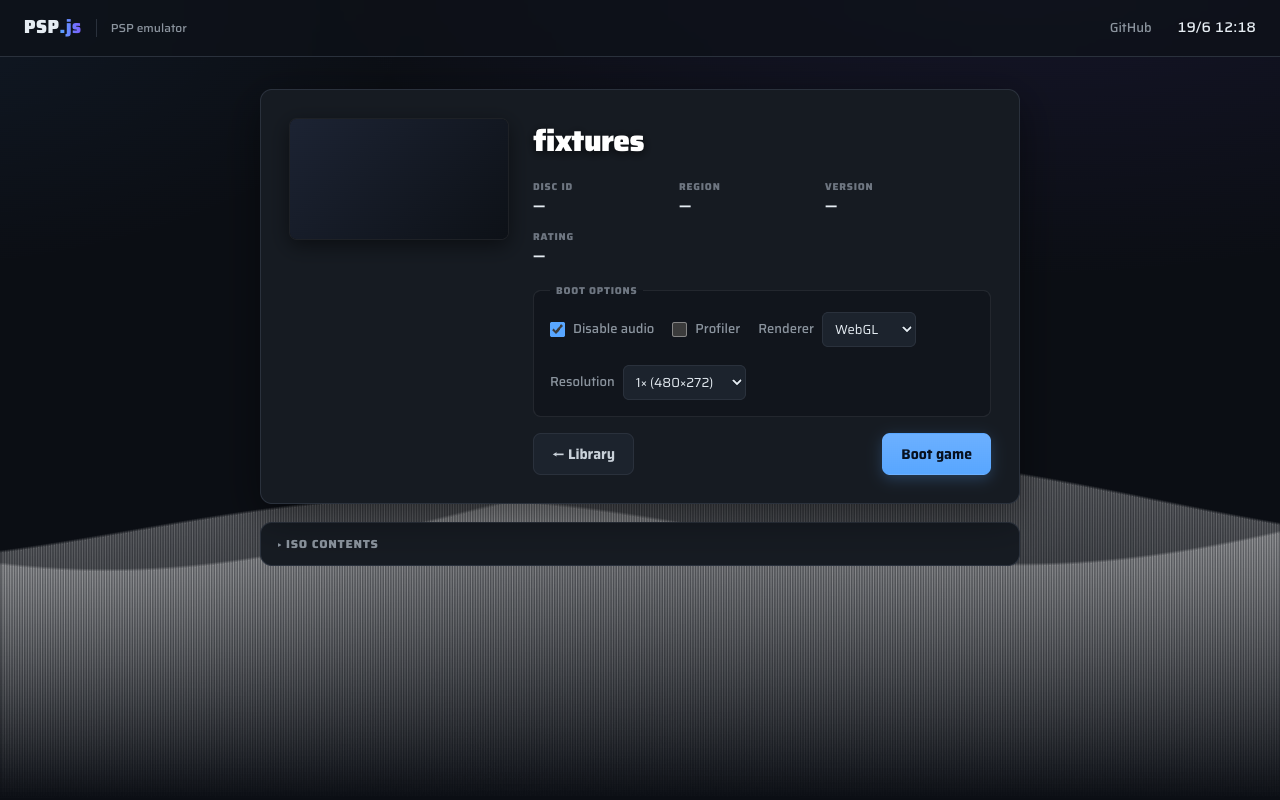
Renderer
| Option | Meaning |
|---|---|
| WebGL (default) | Draws the GE on the GPU. Fast, and the recommended choice. |
| Software | Rasterizes on the CPU into memory. Much slower, useful for comparing output or debugging a rendering issue. |
You can switch between them mid-game from the debug panel's Performance section without rebooting (expect a frame or two of stale image while the game redraws). See GPU (GE) for what differs.
Metal Slug XX on the software rasterizer, at native 480×272.
Resolution
WebGL only. Renders 3D geometry at a higher internal resolution for sharper output, at a GPU cost:
- 1× (480×272, native)
- 2× (960×544)
- 3× (1440×816)
Software always renders at native 480×272.
Audio
Audio is off by default
The Disable audio option is checked by default (it skips audio decoding and AudioEngine init, for faster boots and performance testing). If you want sound, uncheck it before booting. If a game is silent, this is the first thing to check.
Profiler
Records a per-frame breakdown of CPU (interpreter + GE) versus present (GPU) time and shows it live in the debug panel. It adds a small overhead, so leave it off unless you're measuring performance. See Debug Panel.